Power Tools is now SprigTools
CentralReach Power Tools and its note-writing beta are now one tool with one name: SprigTools. It's the same extension you already have — it renames itself automatically with the 1.0 update. Your settings, streaks, and drafts all carry over. There is nothing you need to do.
New in 1.0.1 — sign notes from the home page (beta)
A full-screen Sign notes view launched straight from the CR home page: every note pending your signature in one list, cherry-pick what to sign, hide what you're not ready for, and watch the run with live progress. Built for smaller screens where the Files page gets cramped. Beta opt-in — see the guide.
One extension, two tiers
Stable is on for everyone: the note review & signing tool. Beta is opt-in from the toolbar popup: guided session notes from your schedule, audit suggestions & Note Health, autocorrect, the session scratchpad, and the Note Shelf. Both are covered on this page.
One docs site
This page replaces both the old Power Tools page and the separate beta guide at /beta — old links redirect here. Bookmark this page: docs.bluesprig.app.
No more downloads — ever
SprigTools is installed and kept up to date automatically on BlueSprig-managed Chrome. The old download-a-ZIP installation is gone for good. See Getting SprigTools, including what to do if you still have the old manually-installed Power Tools copy.
Getting SprigTools
You don't install SprigTools — it installs itself. BlueSprig IT deploys the extension to managed Chrome browsers automatically, and it updates itself in the background whenever we release a new version. There is nothing to download, no ZIP file, and no Developer Mode.
Check that you have it
Open Chrome and click the puzzle-piece icon in the toolbar (top-right). You should see SprigTools in the list. You can also type chrome://extensions in the address bar and look for it there.
Pin it to your toolbar
In the puzzle-piece menu, click the pin icon next to SprigTools so it's always visible. The icon is red until you're on a CentralReach page where it can work — that's normal.
Don't see SprigTools? Contact us
If SprigTools isn't in your extensions list on your BlueSprig-managed Chrome browser, it hasn't reached your machine yet — let us know through the feedback & bug report form and we'll get you sorted.
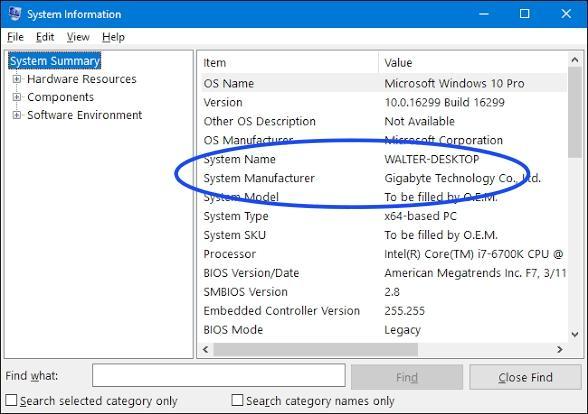
To help us find your computer and push the extension to it, include a screenshot of your System Information with the System Name visible: press the Windows key, type System Information, press Enter, and screenshot the System Summary page that opens — the System Name row is what we need.
See both "CentralReach Power Tools" and "SprigTools"? Remove Power Tools
If you installed Power Tools by hand back in the download-a-ZIP days, you may have two copies: your old manually-loaded "CentralReach Power Tools" and the new managed "SprigTools". Keep SprigTools and remove the old one:
- Type
chrome://extensionsin the address bar and press Enter. - Find the card named CentralReach Power Tools.
- Click Remove, then confirm.
We no longer publish downloads, so anything offering a SprigTools or Power Tools download is out of date (or not ours). The only legitimate copy is the one that appears in your managed Chrome automatically.
The Signing ToolStable
The signing tool streamlines session note review and signing: it opens each note, finds your signature field, handles the attestation, saves, and moves to the next — while you watch progress and stay in control. There are two ways to use it:
Option 1: Cherry Pick
Select specific notes that are visible in the UI to sign.
Navigate to Unsigned Notes
Go to CentralReach and open your unsigned notes by navigating to https://members.centralreach.com/#resources/?unsignedByContactId=me. The icon turns green when ready.
Select Notes
Check the checkboxes next to individual notes you want to sign.
Click Quick Review
Click the navy "QUICK REVIEW" button in the toolbar card. The number in parentheses shows how many notes you selected.
Confirm and Start
Review the list, read the attestation, and click "Start" to begin signing.
Option 2: Batch Sign All
Queue ALL your unsigned notes for signing at once, regardless of what's visible on screen.
Navigate to Unsigned Notes
Go to CentralReach and open your unsigned notes by navigating to https://members.centralreach.com/#resources/?unsignedByContactId=me. The icon turns green when ready.
Click Batch Sign All
Click the light-blue "BATCH SIGN ALL NOTES" button to queue all unsigned notes.
Confirm and Start
Review the list of all notes, read the attestation, and click "Start" to begin signing.
During Signing
Watch Progress
The extension signs each note automatically. A progress bar shows your status. Keep the CentralReach tab in front — if you switch tabs, signing automatically pauses and resumes when you return.
Done
View the completion summary. If any notes failed or were skipped, one click re-selects them all so you can retry. The page refreshes to show updated results.
Keyboard Shortcuts
Don't close the tab or navigate away while signing is in progress.
Feature summary
Cherry Pick
Select specific notes visible in the UI to sign
Batch Sign All
One click to queue all unsigned notes
Progress Tracking
Real-time progress bar and status updates
Pause & Resume
Take a break and continue where you left off
Skip Notes
Skip problematic notes without stopping
Secure
No note content stored or transmitted externally
Signing Tracker
See your monthly signing completion at a glance
Payor Color-Coding
Recognized plans color-coded in the grid — see Payors
Beta Features — What They Are & How to Turn Them OnBeta
Beyond the signing tool, SprigTools ships an opt-in beta: a full-screen Sign notes view launched right from the CR home page, a collapsible Quick Review bar, guided session notes from your schedule, live audit suggestions and a Note Health score as you type, autocorrect for common typos, a floating session scratchpad, and a Note Shelf for drafting ahead of time. It's off by default — flip it on when you're ready:
- Click the SprigTools icon in your Chrome toolbar (the puzzle-piece menu if it's not pinned).
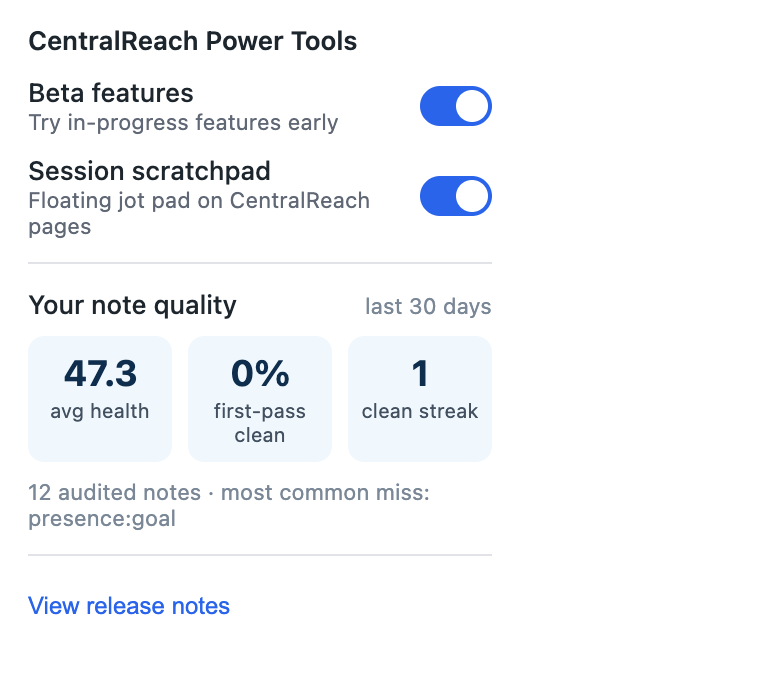
- Flip Beta features on. Open CentralReach tabs reload automatically to apply it.
- The Session scratchpad toggle appears too — it's on by default; turn it off here any time.
Sign Notes From the Home Page — the Full-Screen ViewBeta
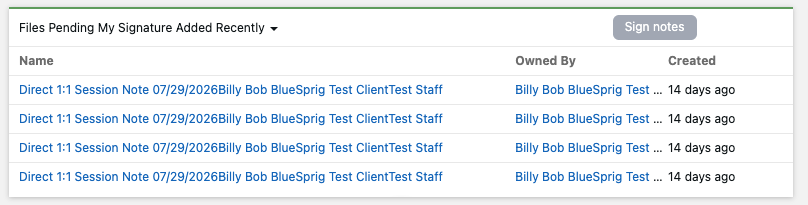
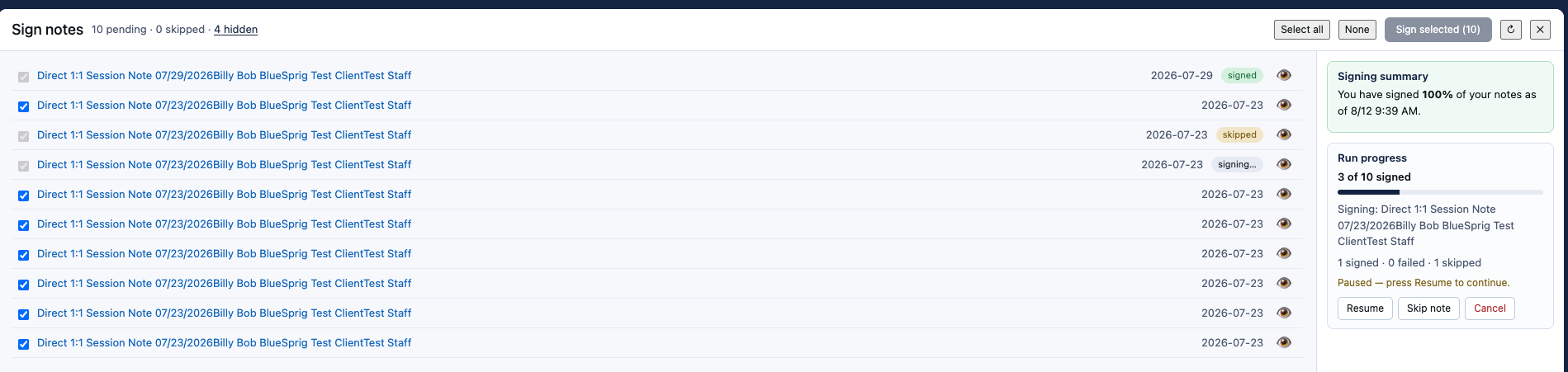
If the Files page feels cramped on your screen, this one's for you. A Sign notes button appears on the CR home page, in the title bar of the Files Pending My Signature Added Recently widget (it's faded until you hover). Click it and SprigTools opens a full-screen view built for exactly one job: reviewing and signing your pending notes.
What you get
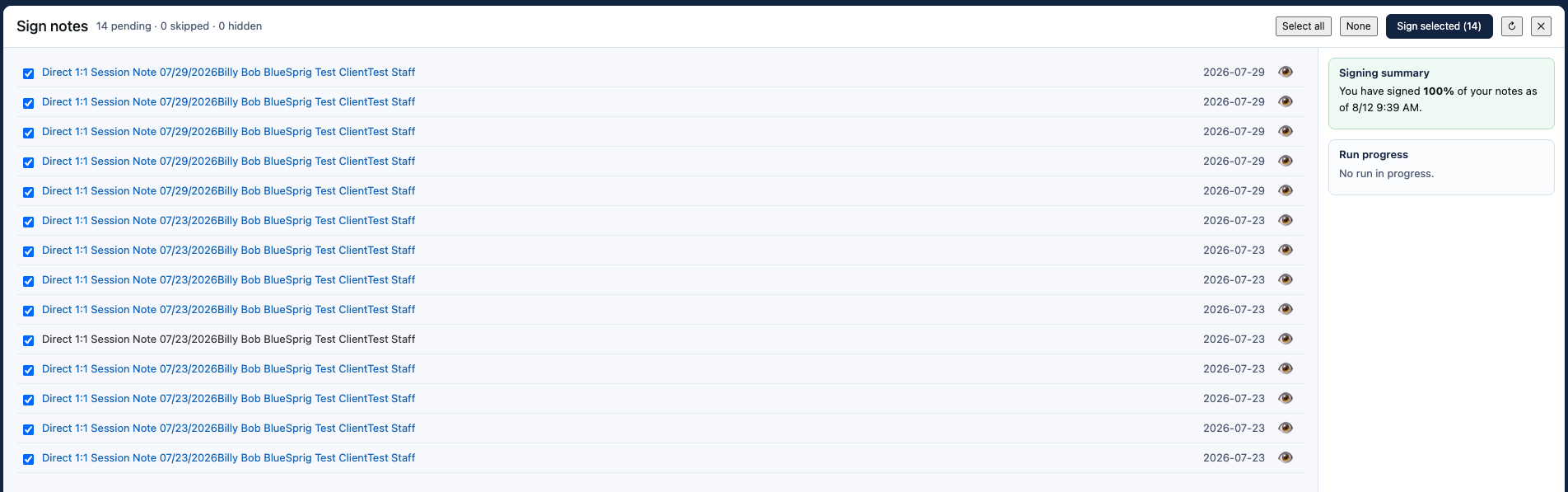
- Every pending note, one list. Not just the 50 the Files grid shows per page — everything waiting on your signature, newest first, same as the Files page.
- Pick exactly what to sign. Every note has a checkbox (all checked to start). Use Select all / None, or cherry-pick, then hit Sign selected. The same trusted signing engine from Quick Review does the work while you watch progress in the right-hand rail — with Pause, Skip note, and Cancel.
- Read before you sign. Click any note's name and it opens in a new tab — the list stays right where you left it.
- Unsignable templates are set aside for you. Notes the tool can't sign (treatment plans, for now) show up dimmed with a label instead of failing mid-run. This list is updated centrally as we discover more — no update required on your end.
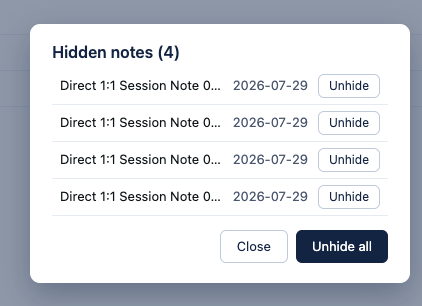
- Hide what you're not ready for. Click the eye icon on a note to tuck it away — too old, wrong template, whatever the reason. The "N hidden" counter in the header opens a list where you can unhide notes one at a time or all at once. Hidden notes stay hidden next time, until you say otherwise.
- Your signing stats, right there. The rail shows your signed percentage for the fiscal month, refreshed after every run.
Collapse the Quick Review BarBeta
Another one for smaller screens: on the Files page, the Quick Review bar can now get out of the way. Click the small caret toggle at the bar's left edge and the whole toolbar tucks itself away, giving the row back to your notes; the caret stows next to CR's ALL / AUTHORIZED switch. Click it again to bring the bar back. Your choice sticks — the bar stays collapsed (or expanded) until you toggle it, across pages and sessions.


Write & Submit a Session Note From Your ScheduleBeta
This is the recommended way to write session notes: start from a scheduled appointment, and the tool pre-fills the timesheet, guides the note, checks it as you type, then signs and submits for you.
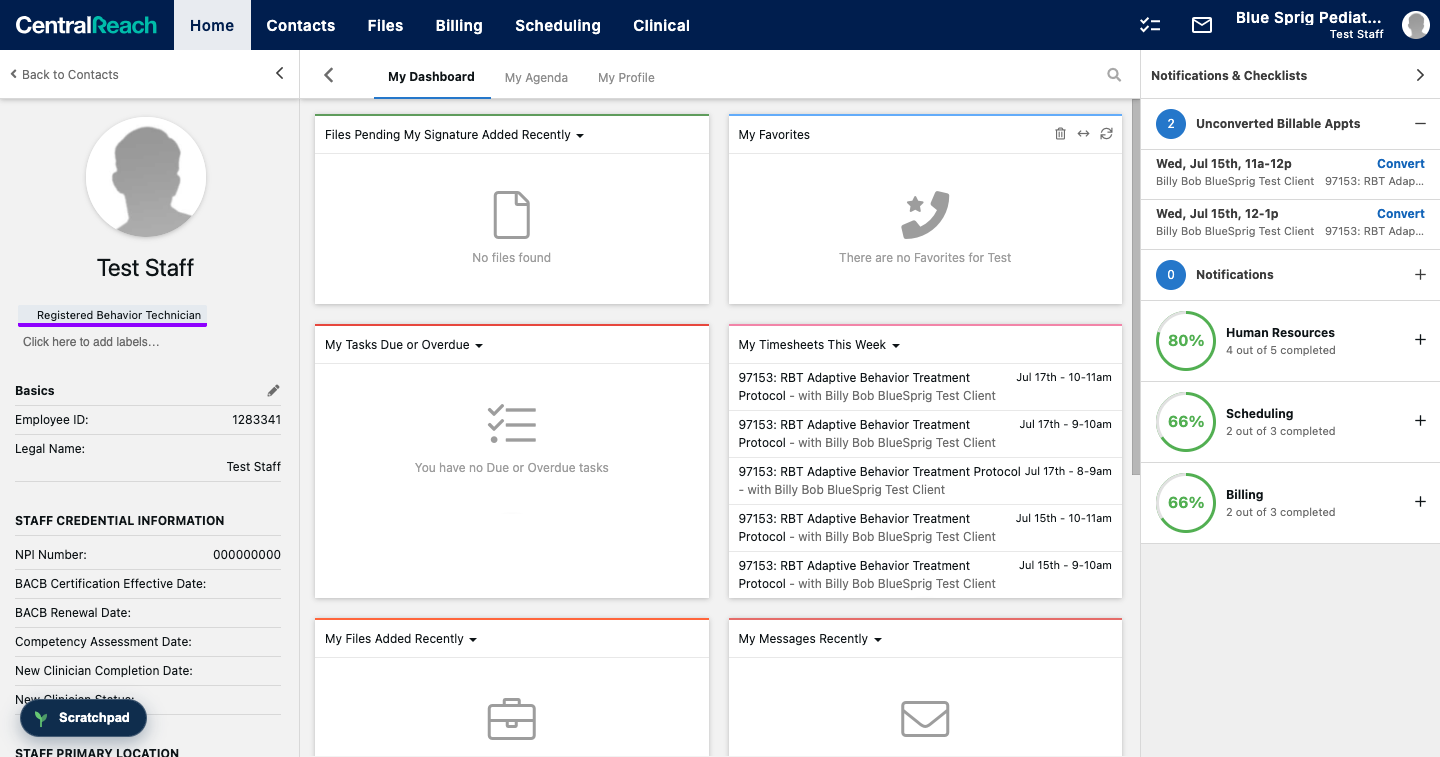
1 · Convert an appointment
Open Scheduling → View my calendar and find your session. Unconverted appointments show a lightning bolt; converted ones show a checkmark.
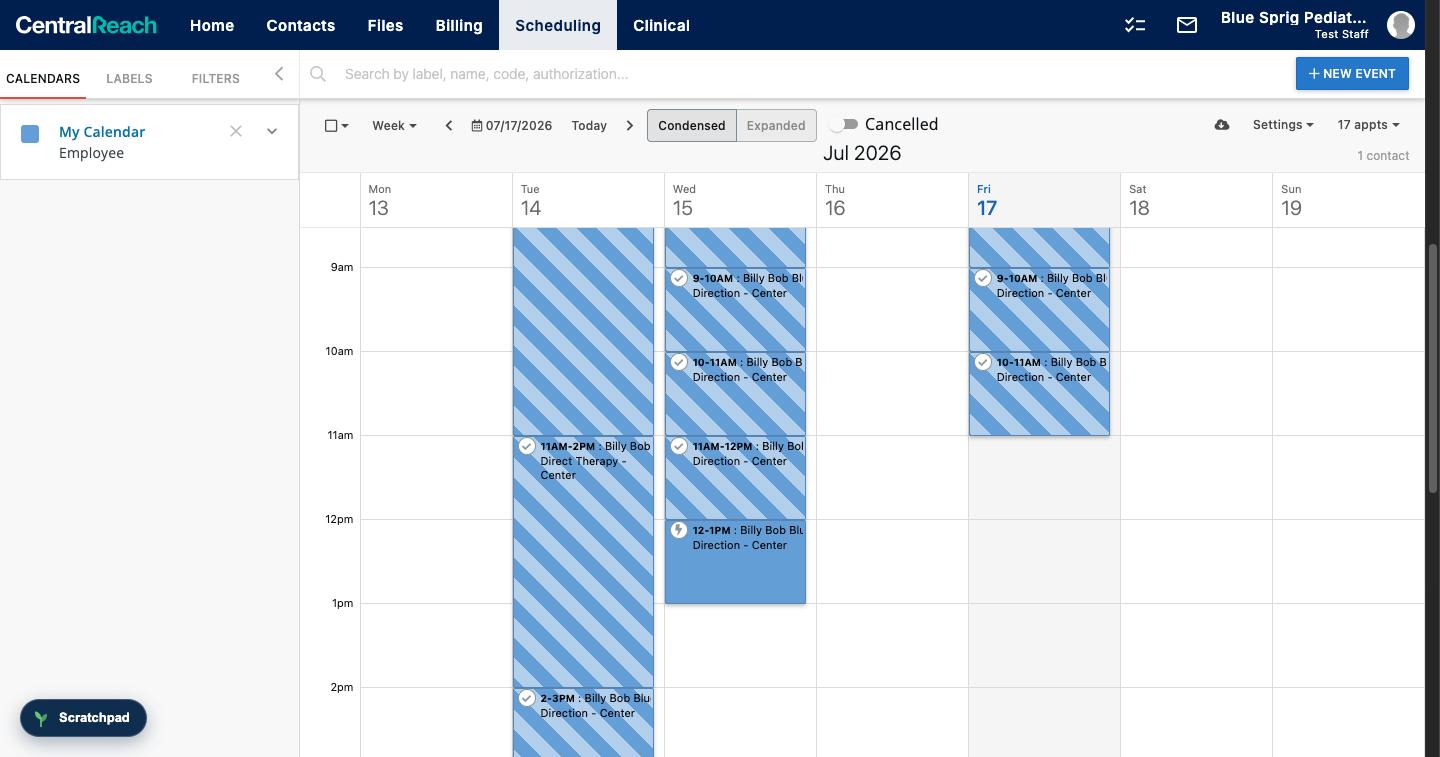
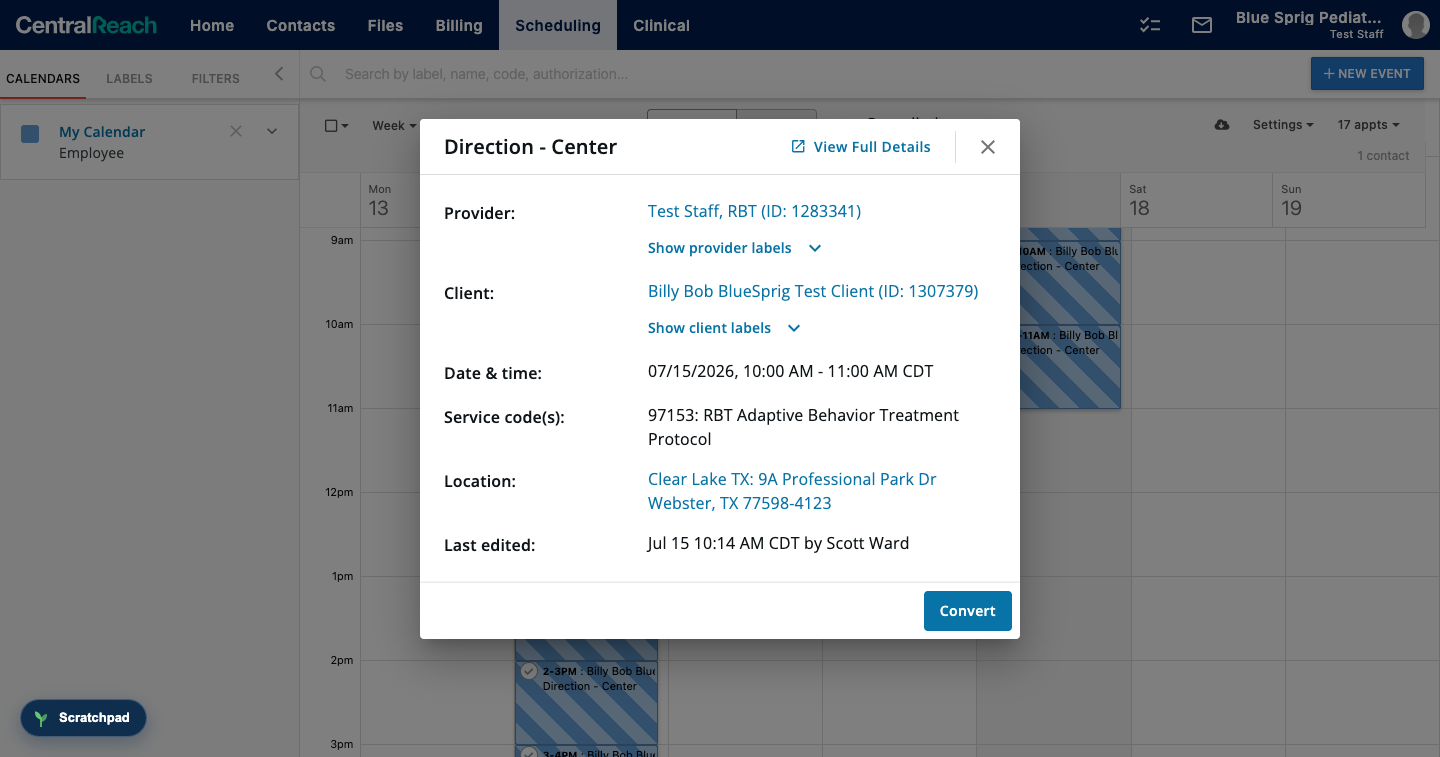
Click the appointment, then click Convert in the details card.
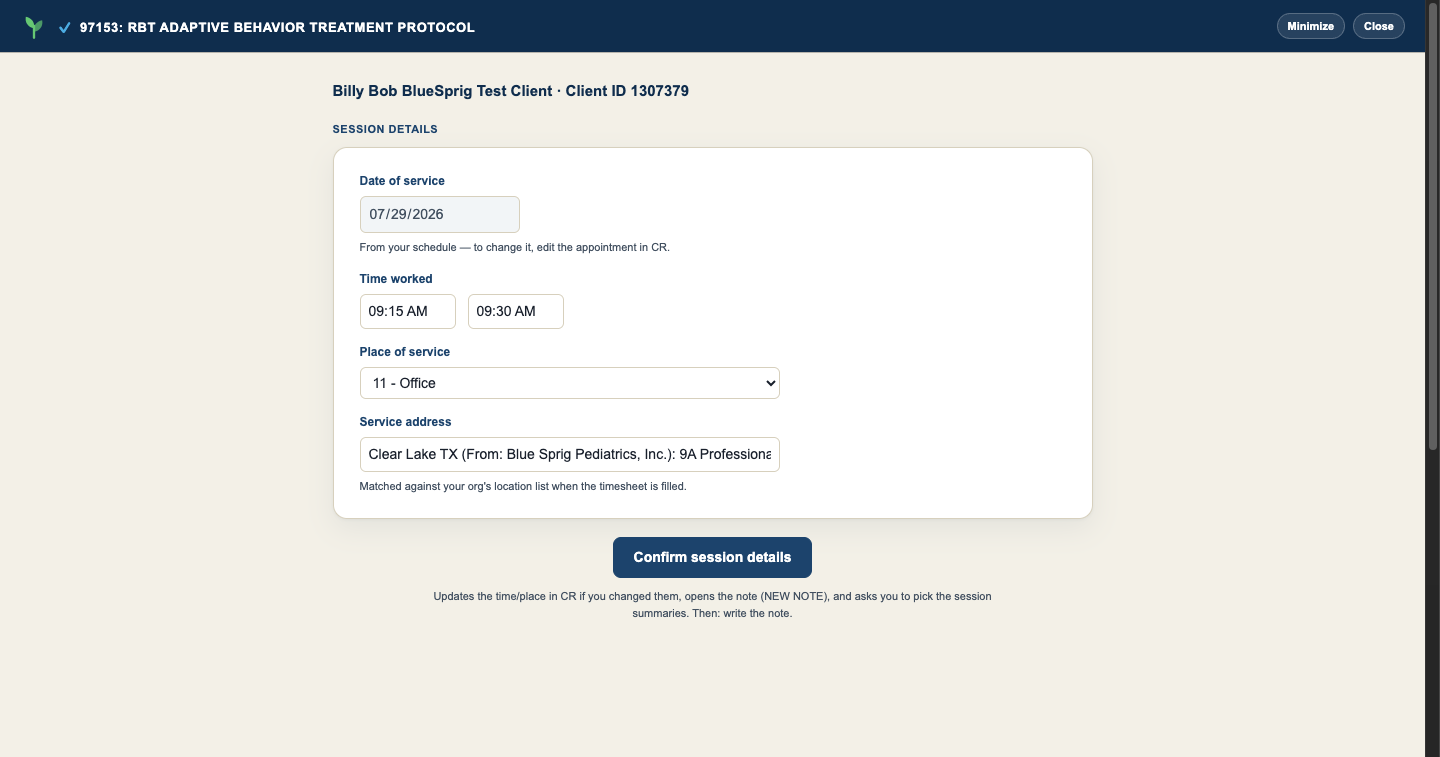
2 · Check your session details, then Confirm
The Draft Editor opens on Session details, already filled from your schedule: client, date of service, time worked, place of service, and service address. Check them, then click Confirm session details — the tool fills the CR timesheet and opens the note right away.
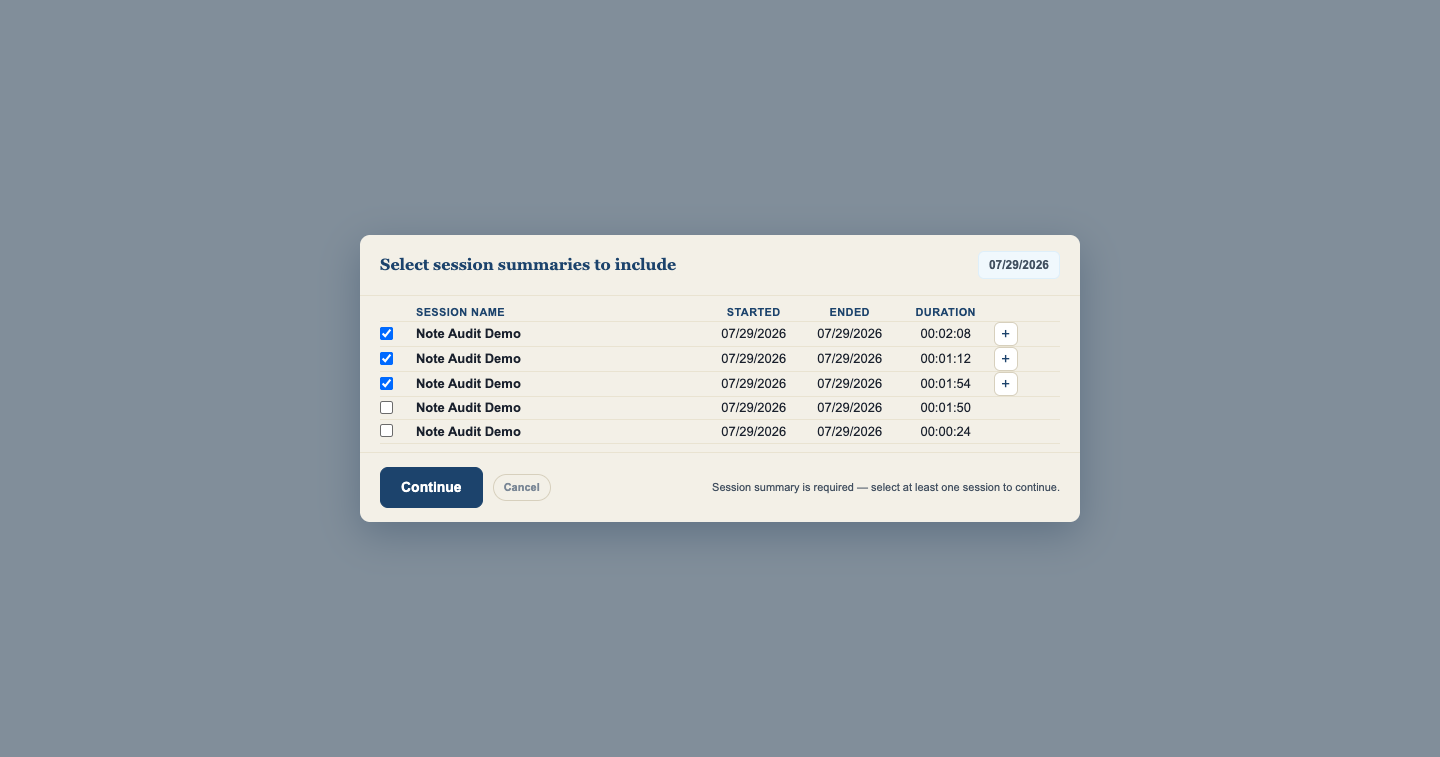
3 · Pick the session summaries to include
CR requires session-summary data on the note, and picking it first is what puts your session data in front of you while you write. Tick the session(s) — you can select more than one — and hit Continue. If no session data exists for that date, the picker asks you to confirm that's correct instead.
4 · Write the note — with your session data in view
The editor moves to Session note, and your committed session data (each branch with its current data point) sits right above the Session Summary box — no more writing blind and checking the numbers after submitting. Multiple sessions show under their own headings. Picked the wrong sessions? The Select Session Summary button on the card reopens the picker to add, remove, or change them.
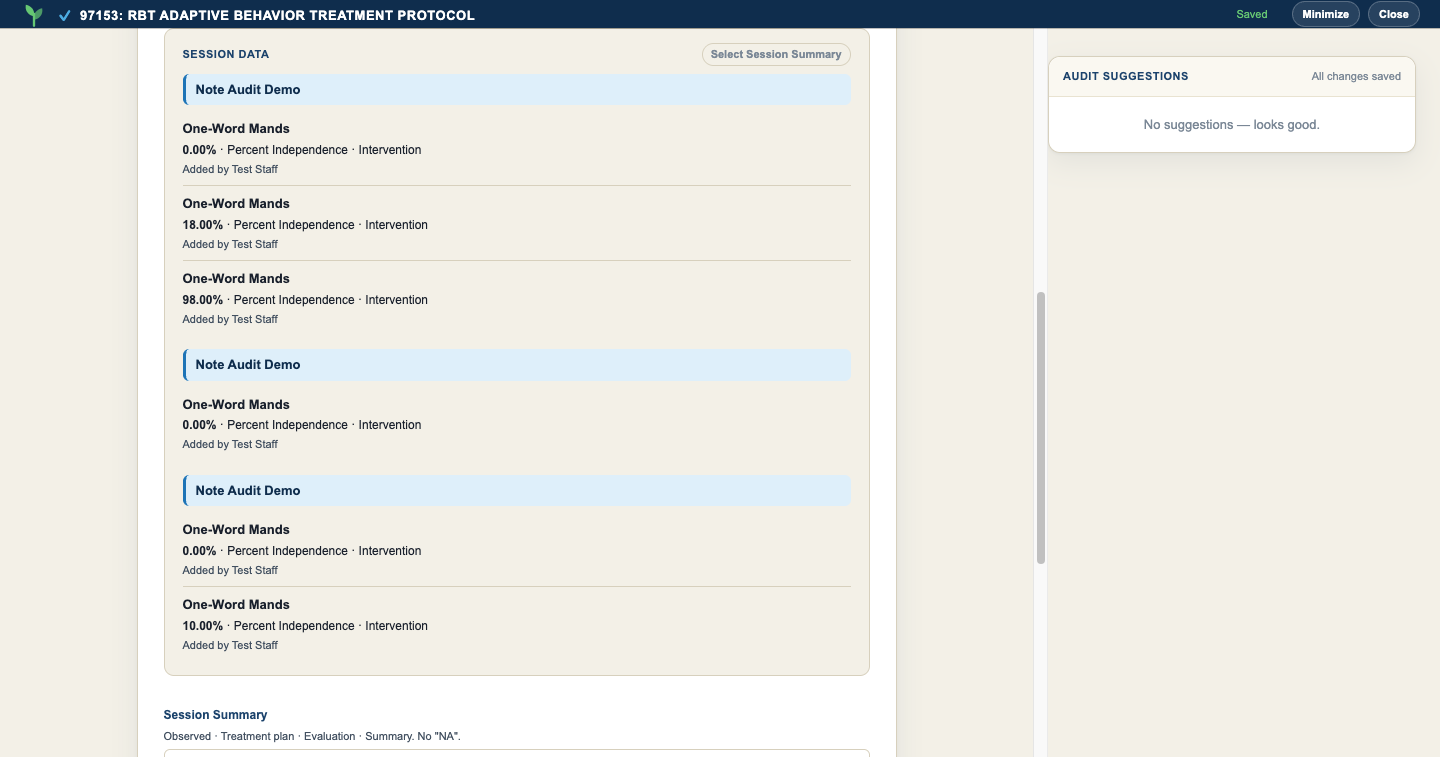
Then work top to bottom as usual: end time (pre-seeded from the timesheet), participation, parent status, the interventions you implemented, and your Session Summary. The audit panel on the right checks your writing as you go — see Audit suggestions & Note Health.
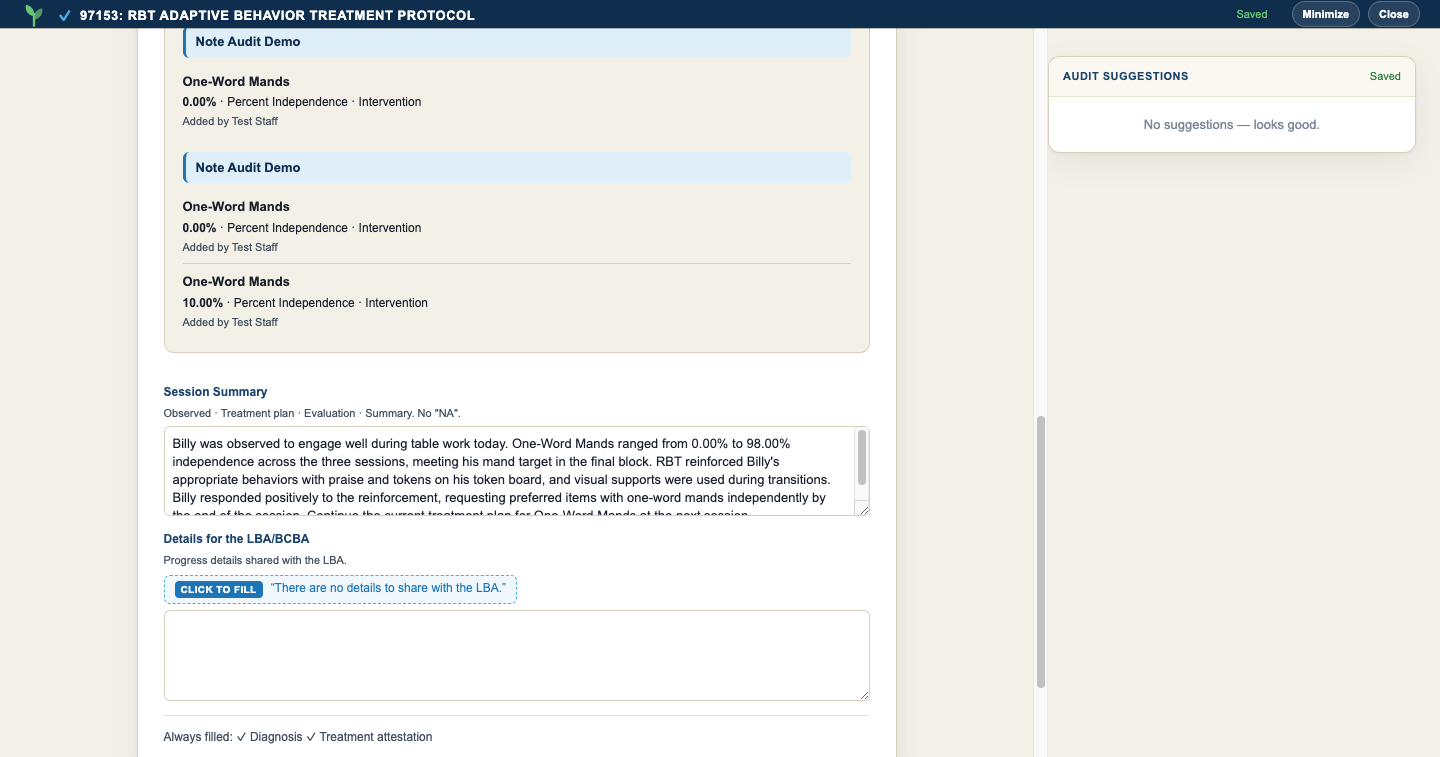
5 · Click "Fill & create in CR" — done
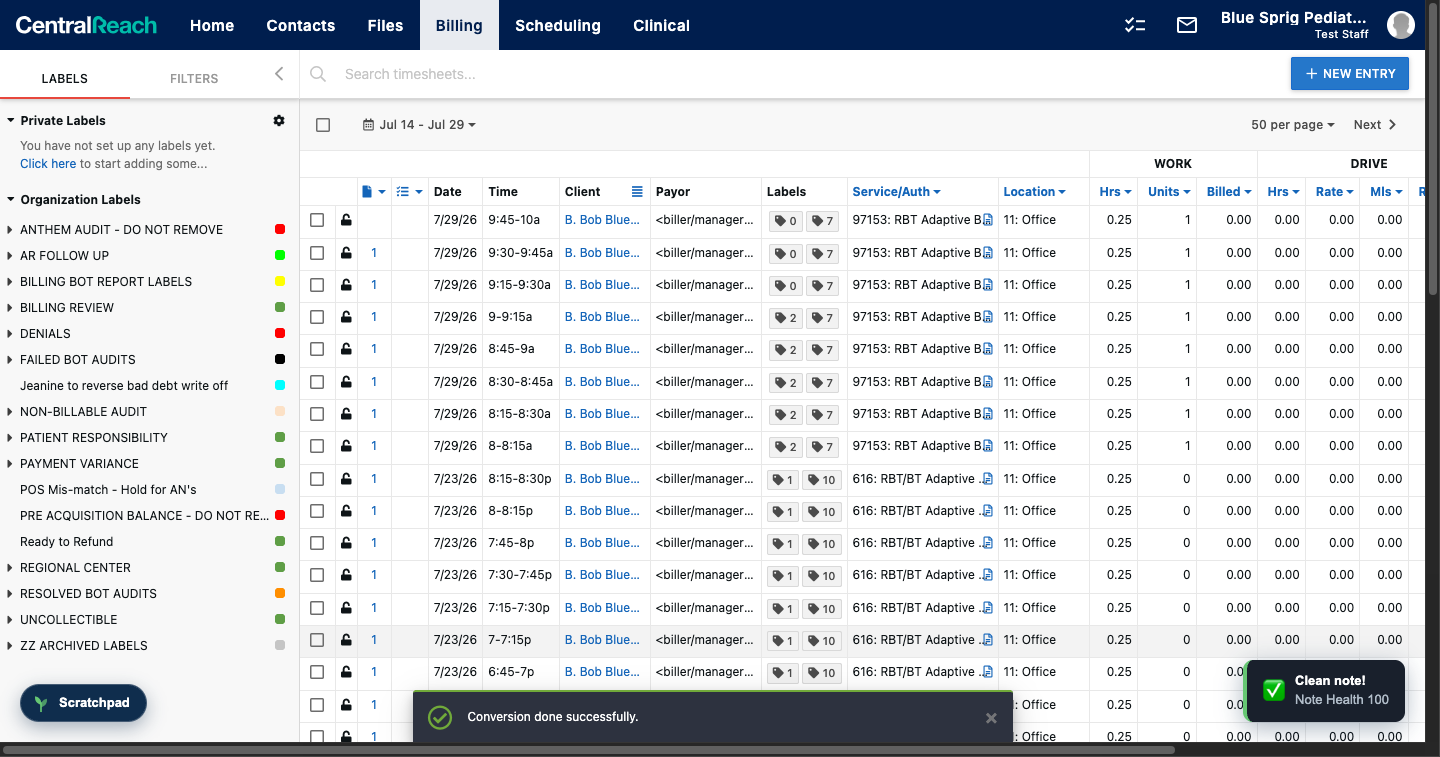
Everything from here is hands-off: the tool copies your draft into the real CR form, signs the note (with the "I agree" attestation), saves it, and submits the timesheet. When it's done you land back on CR's billing page — your new timesheet at the top of the list — with your Note Health toast in the corner.
H2019 & 616 Notes — Fee Schedules and the Sectioned EditorBeta
Sessions scheduled under H2019 (RBT/BT Direct Therapy) or 616 (RBT/BT Adaptive Behavior Treatment Protocol) convert from your calendar exactly like 97153 — with two additions. (TRICARE 97153 sessions also get their own guided form — see the changelog.)
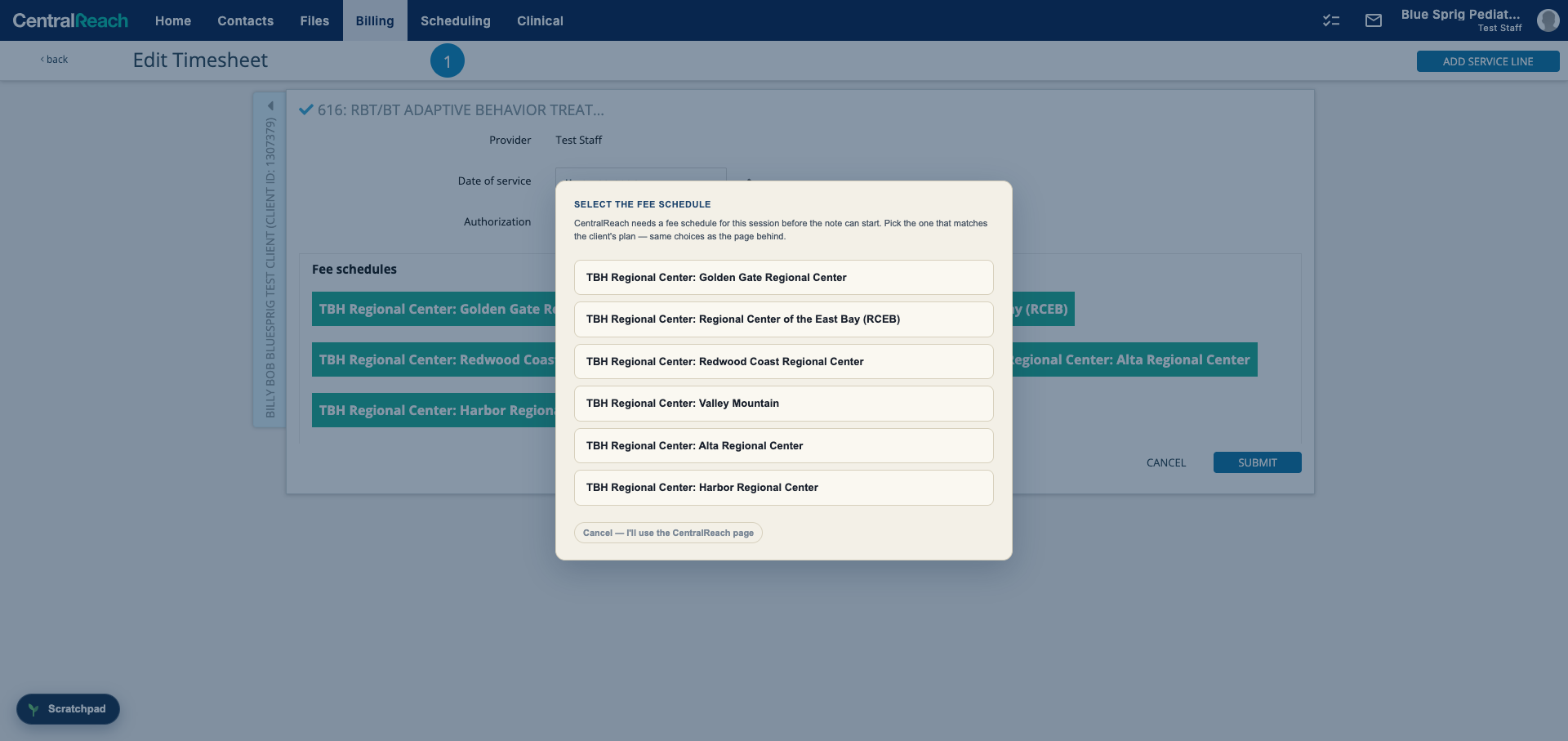
1 · Pick the fee schedule
These payors need a fee schedule chosen before the note can start. Right after Convert, the choices from the CentralReach page appear in a picker — tap the one that matches the client's plan (options with modifiers, like HM, are labeled). Cancel keeps you on the standard CentralReach page instead.
2 · The 616 note: one section at a time
The 616 "TBC Session Note" is a much bigger form, so its editor breaks it into collapsible sections. Open one, fill it, and move on — each section gets a green check once it has what it needs, with a count of your picks.
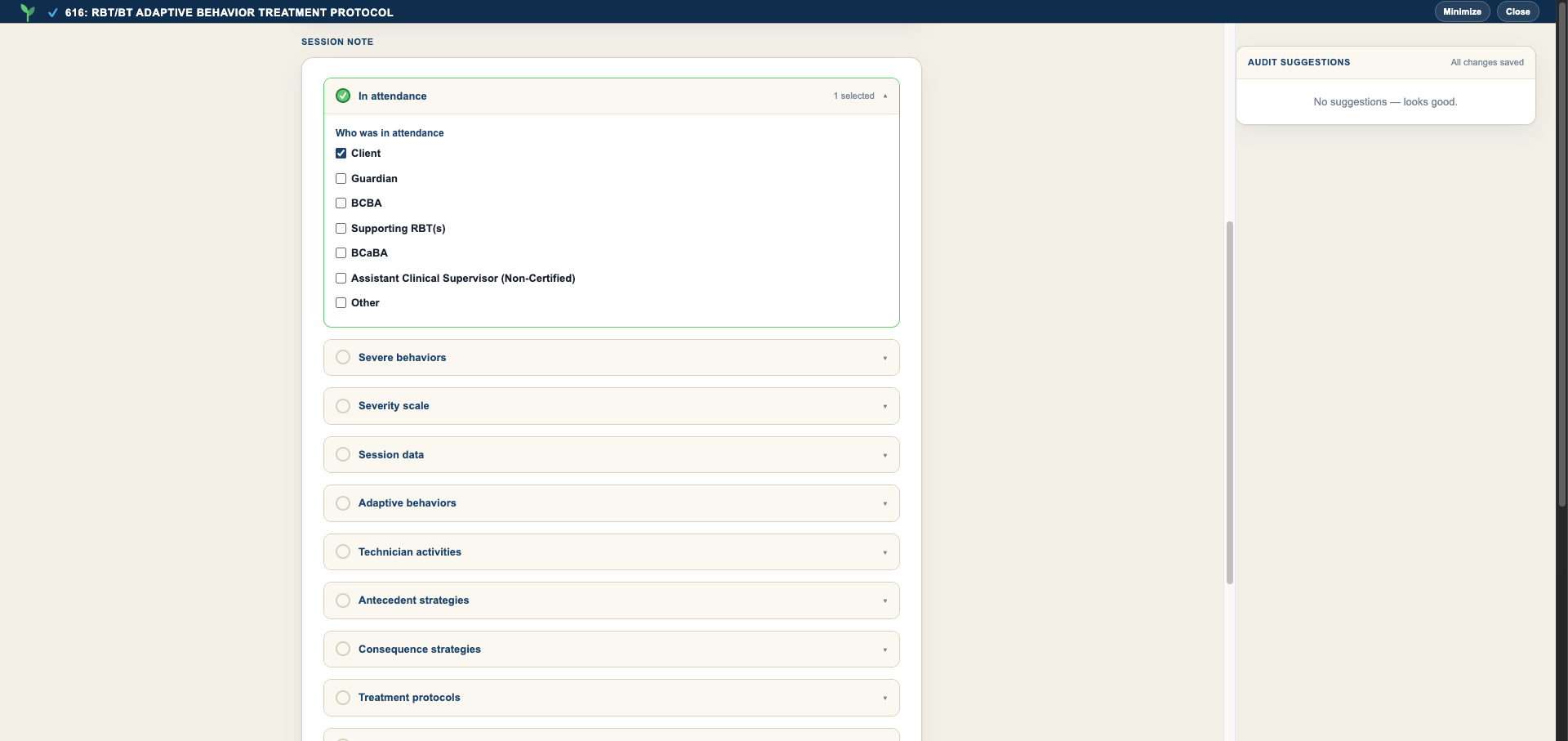
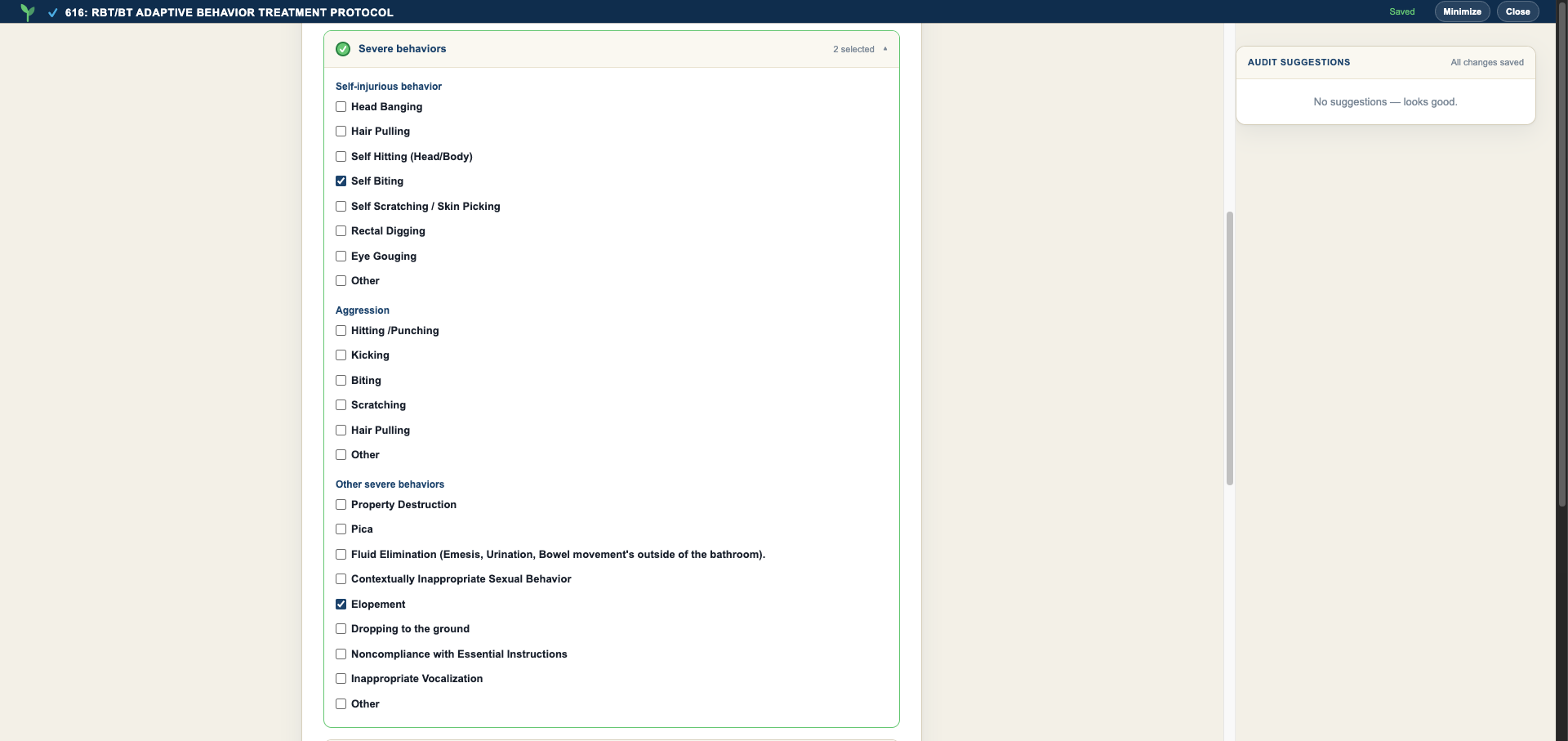
Severe behaviors mirror the note's three columns — self-injurious, aggression, and other — each with its own "Other" text box:
3 · Every section, before you fill
Fill & create in CR stays off until every section is complete. The banner above the button always tells you exactly which sections still need something.
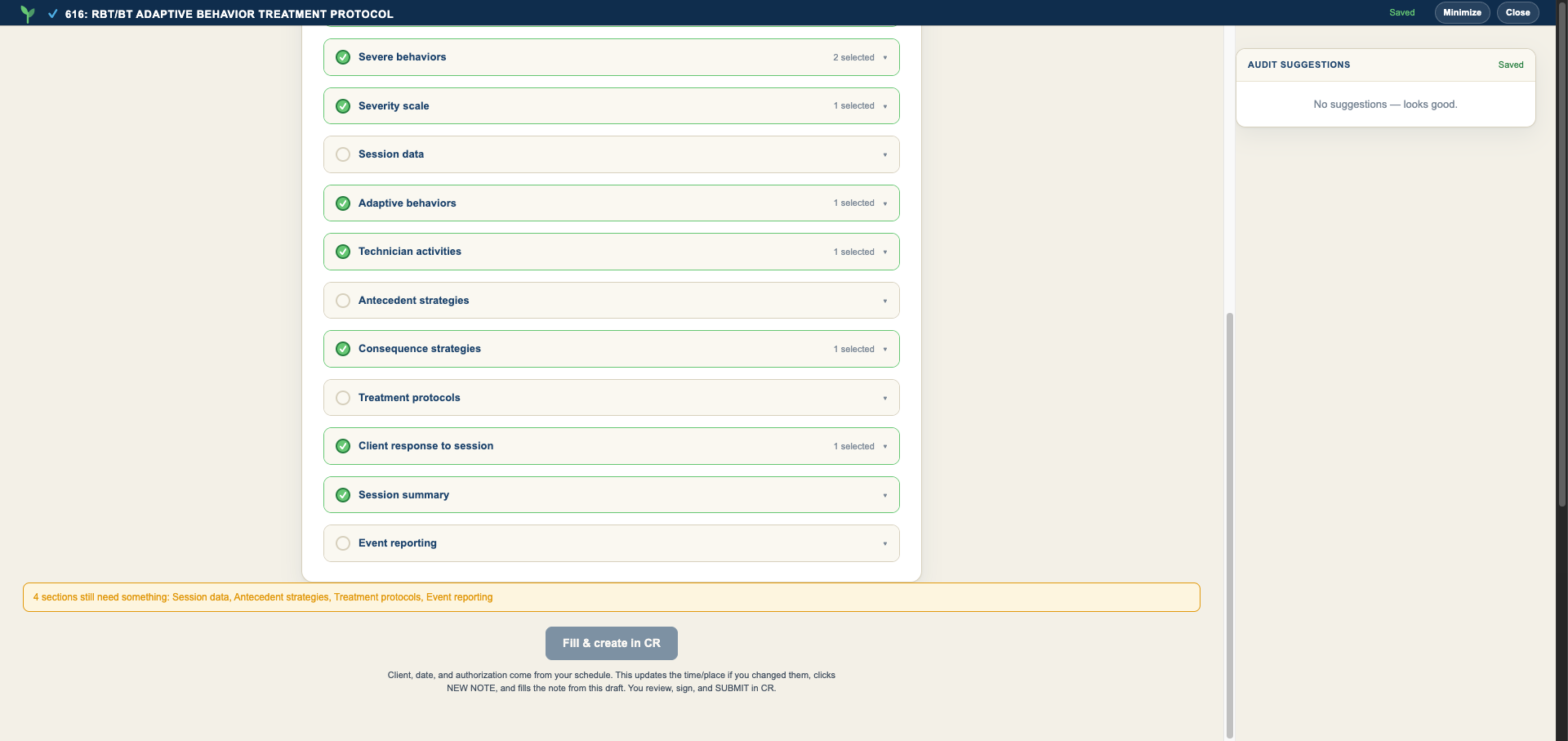
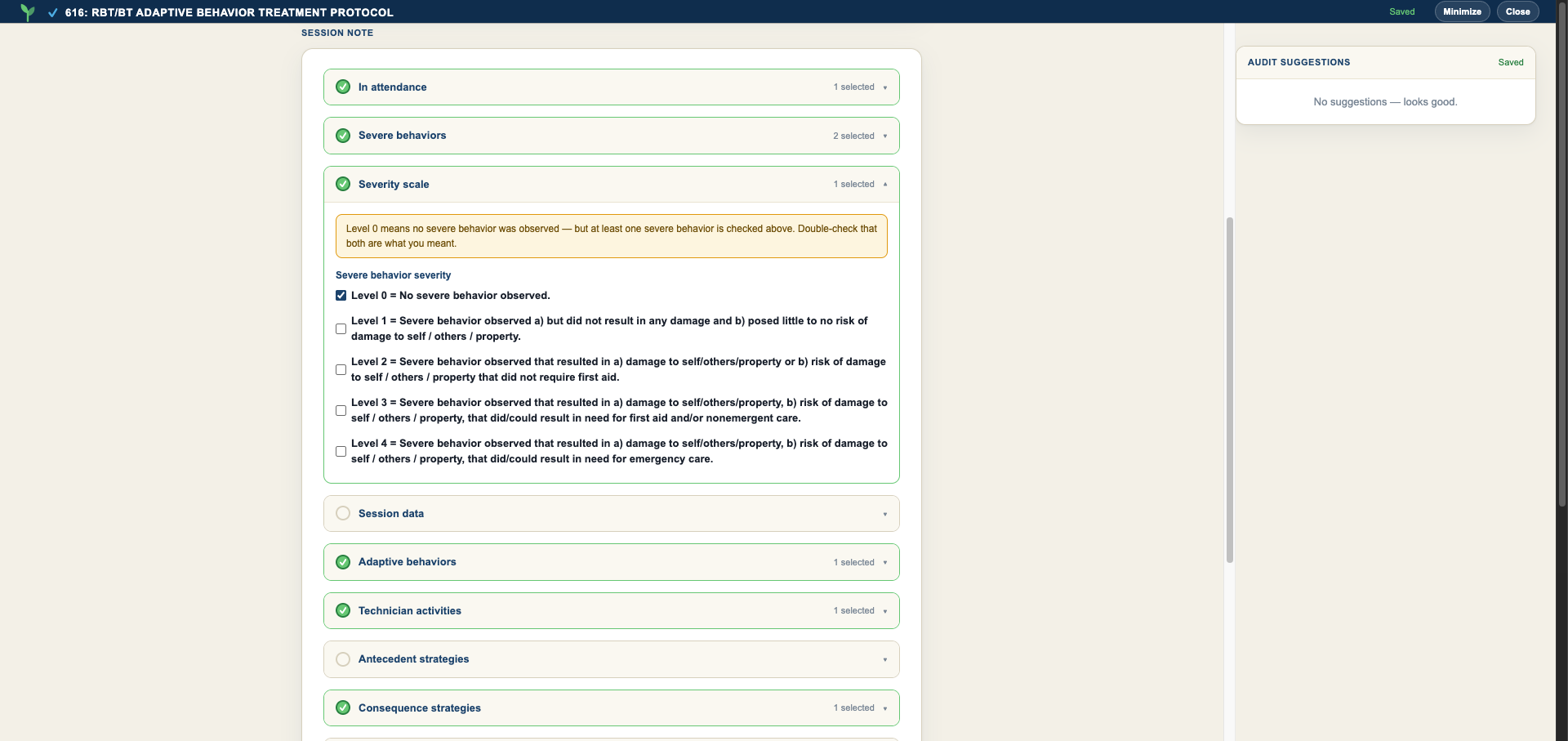
- Calm session? Picking Level 0 — no severe behavior observed lets the Severe behaviors section count as complete while empty. And if a behavior is checked alongside Level 0, a gentle notice asks you to double-check — it never blocks you.
- Event reporting: the "Which report" choice unlocks only when you've said a report was necessary.
- Treatment protocols get the same audit help as interventions: a checked protocol the summary never mentions raises the "not evidenced" suggestion with a sentence starter.
From there it's the flow you know: Fill & create in CR fills the whole note (including every "Other" text you wrote), signs, and submits. The 616 note has no session-summary picker step — that's normal for this note type.
Audit Suggestions & Note HealthBeta
While you type a Session Summary, the Audit Suggestions panel flags things a payer auditor would: passive voice, "NA", missing data references, no intervention named, formatting slips, and more.
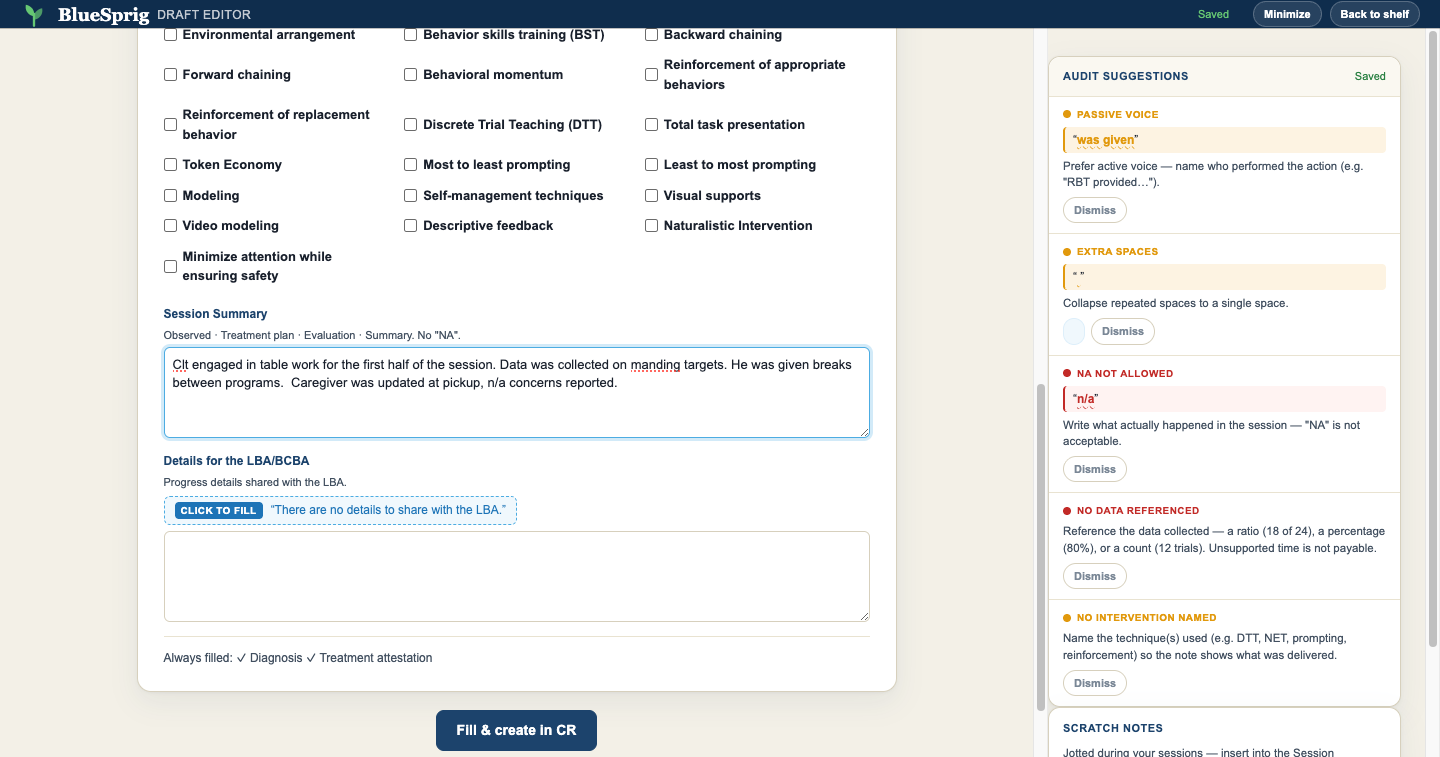
- Note Health — every audited note gets a 0–100 score at sign time based on the flags still unresolved. Clean note = 100.
- Clean streak — consecutive clean notes. Time off never breaks a streak; only a note with unresolved flags does.
- The toast — right after signing you'll see your score for that note.
- Hand-signed notes count too — if you open a note and sign it yourself in CR, the audit still scores it.
Want the full list? See exactly what the audit checks below.
What the Audit ChecksBeta
Every rule runs on your computer, while you type — nothing you write is sent anywhere for checking. Flags come in two strengths: must-fix flags are the things payer auditors reject notes over, and advisory flags are style and clarity nudges. Unresolved flags at sign time are what set the note's Health score; you can always dismiss a flag that genuinely doesn't apply.
Four things every note must contain
These check that something is present in your Session Summary, not how it's worded. They run when you pause or finish a field — not against a half-typed sentence — so they won't nag mid-thought:
- Data referenced (must-fix) — the note cites the data collected: a ratio (18 of 24), a percentage (80%), or a count (12 trials). Unsupported time is not payable.
- Client response described (must-fix) — how the client responded to the intervention (responded, completed, complied, manded, protested…). Every payer requires the client's observable response.
- Intervention named (advisory) — the technique(s) delivered are named: DTT, NET, prompting, reinforcement, redirection, shaping, and so on.
- Goal linkage (advisory) — the session ties to a treatment-plan goal, program, or target.
Wording the audit flags
These highlight the exact words in your text, with the reason — and a one-click fix where one exists:
- "NA" / "N/A" (must-fix) — write what actually happened in the session; "NA" is never acceptable.
- Vague filler (must-fix) — "worked on…", "good session", "did well", "made progress", "client was engaged" — phrases that prove nothing to an auditor. Describe the specific program, what the client did, and the data.
- Passive voice (advisory) — "was provided", "were prompted" → name who acted: "RBT provided…".
- Subjective language (advisory) — "seemed", "appeared", "happy", "frustrated" — replace interpretation with the observable behavior you saw and measured.
- Informal or judgmental wording (advisory) — "kiddo", "threw a tantrum", "refused to cooperate", trait labels — use neutral, professional, observable language.
- Reads like 97155 (advisory) — "modified the protocol", "real-time change" — that's protocol-modification (97155) language; a 97153 direct-session note documents plan implementation.
- Abbreviations (advisory, one-click fix) — "w/", "b/c", "w/o", "&", "approx" are offered their spelled-out replacements.
- Extra spaces (advisory, one-click fix) — runs of repeated spaces collapse to one.
Session times and dates
The structured session-details fields get their own checks, shown as notices in the editor:
- Reversed time range (must-fix) — Time To at or before Time From. Either direction of this error bills the wrong units.
- Late entry (advisory) — the session was 2 or more days ago. Notes entered more than 24 hours after service need an explicit "late entry" notation — a payer requirement.
- Implausible duration (advisory) — under 15 minutes (less than one billable unit — likely a data-entry slip) or over 8 hours (check for an AM/PM mix-up, which doubles the span).
Checked against your checkboxes
Beyond the text itself, the audit cross-references the note's structured fields against a hand-curated vocabulary of 24 interventions (19 on the standard direct-session note, 5 more on 616 TBC notes). It works in both directions:
- Checked but not evidenced — an intervention (or, on 616 notes, a treatment protocol) you checked but never mentioned in the summary raises a suggestion; one click inserts a compliance sentence starter (e.g. "I implemented discrete trial teaching (DTT) by …") for you to complete, and the flag clears itself once the sentence exists.
- Mentioned but not checked — describing a technique whose box is unticked (a token board counts as Visual supports, for instance) offers the one-click nudge to tick the matching box.
The matching understands clinical prose — "reinforced GF's appropriate behaviors" counts for Reinforcement of appropriate behaviors, initials and all — and negations ("did not implement…") never count as evidence. Both directions are advisory and dismissible.
Autocorrect While You TypeBeta
Common typos fix themselves as you type — in every note text box and in scratchpad jots. Finish a word with a space or punctuation and slips like teh → the, recieved → received, or tokn → token are corrected on the spot. Everything runs on your computer; nothing you type is sent anywhere.
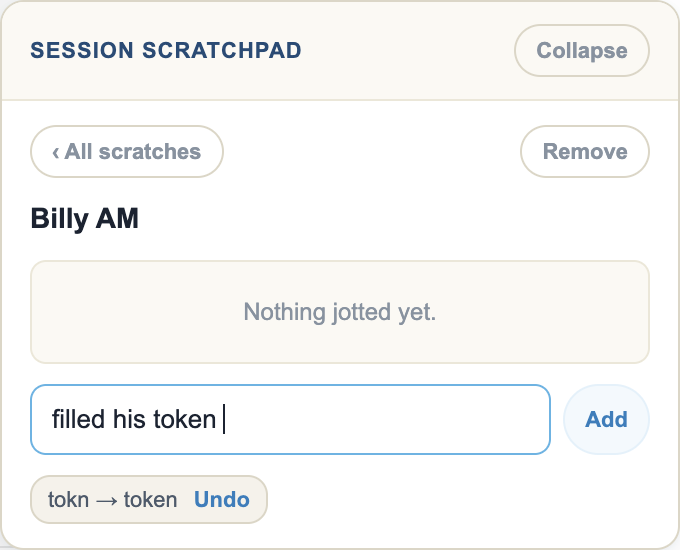
- Every fix shows an Undo chip under the text box (e.g. tokn → token · Undo). Click Undo to put your word back — and autocorrect will leave that word alone until you reload the page. It never argues twice.
- Names are never touched. Anything capitalized — client names, initials like GF — is off-limits on purpose, and so are typos with more than one likely fix. Those keep Chrome's red underline instead: right-click the underlined word for spelling suggestions.
- It knows your vocabulary. ABA terms like manding, stimming, and intraverbal are recognized, not "corrected" into other words.
- Jots: the last word goes in as typed. Pressing Enter saves your jot exactly as written — corrections only happen at spaces, so the tail word is never rewritten behind your back.
- Rather spell it yourself? Turn autocorrect off with the toggle in the extension popup — the red-underline spellcheck stays either way.
The Session ScratchpadBeta
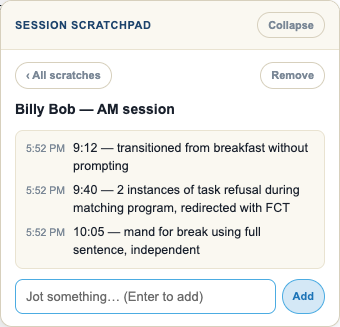
A floating jot pad that lives on every CentralReach page — capture moments during the session, then pull them into your note afterwards.
- Click the Scratchpad pill (bottom-left of any CR page). Drag it somewhere else if it's in your way — it remembers where you put it. The open pad moves too: drag it by its header bar.
- Name the session (e.g. Billy AM) and hit Start scratch.
- Jot as you go — each jot is timestamped. Collapse the pad between jots.
Pull jots into your note
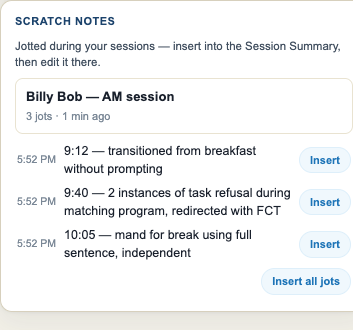
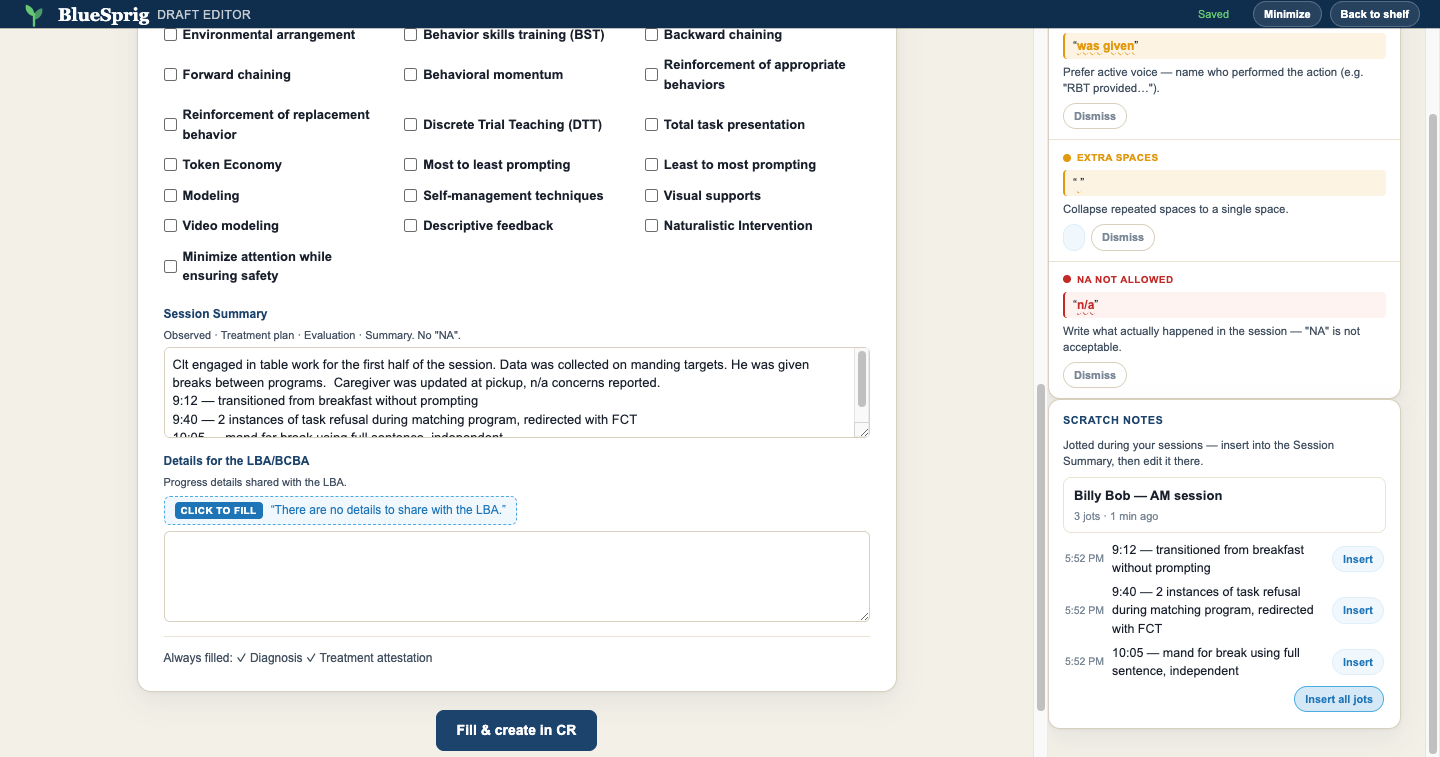
When you open a draft later, your scratches appear in the Scratch Notes rail next to the editor. Insert jots one at a time or all at once — they land in your Session Summary, where you edit them into narrative.
The Note Shelf — Draft Ahead of TimeBeta
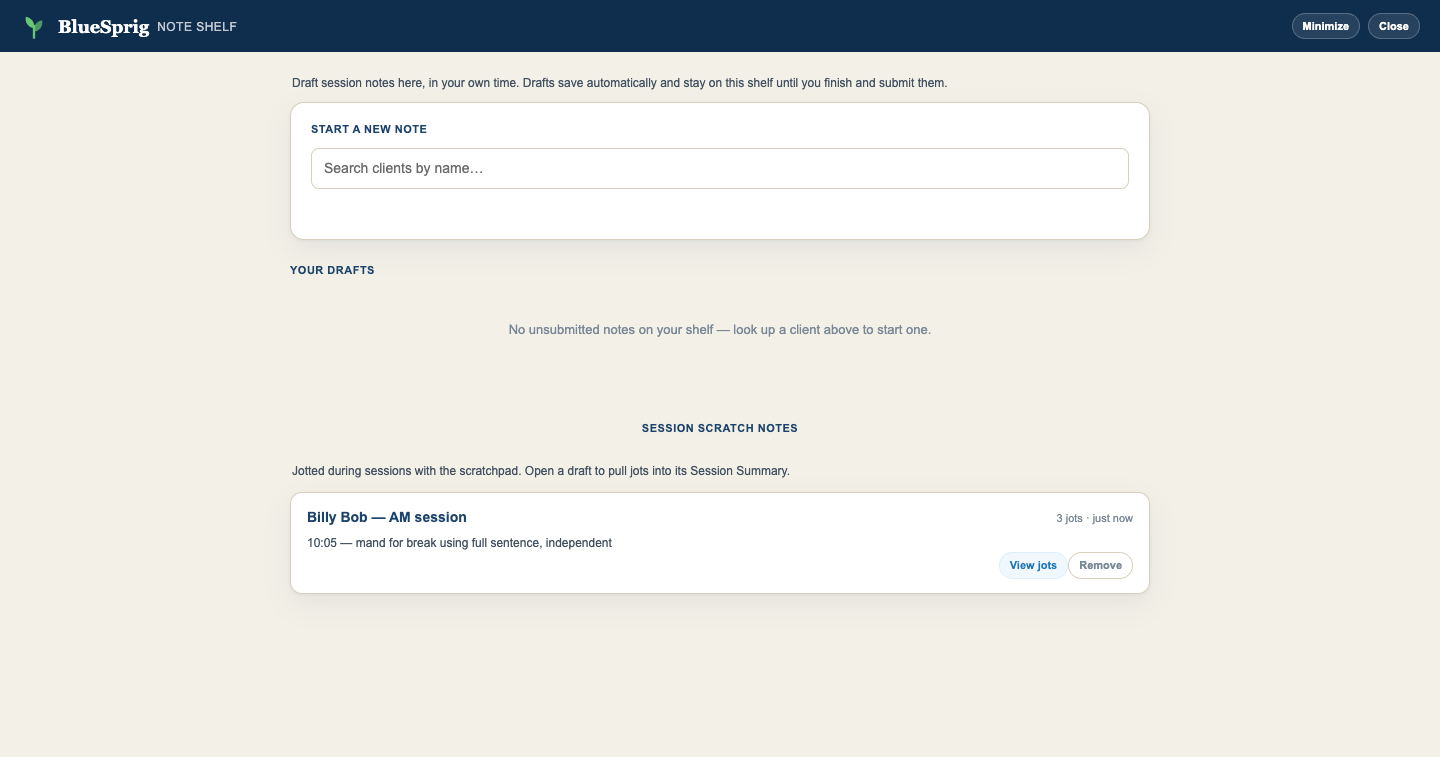
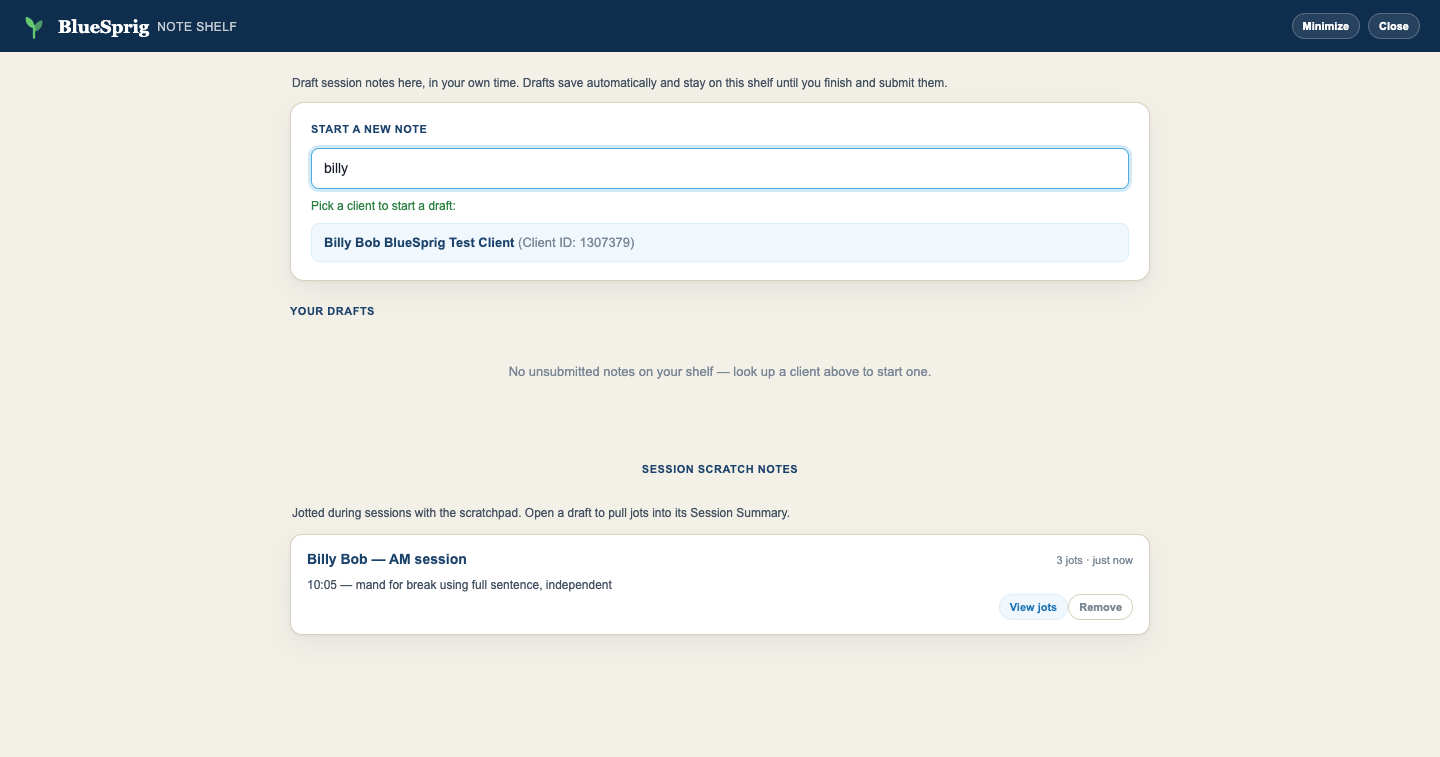
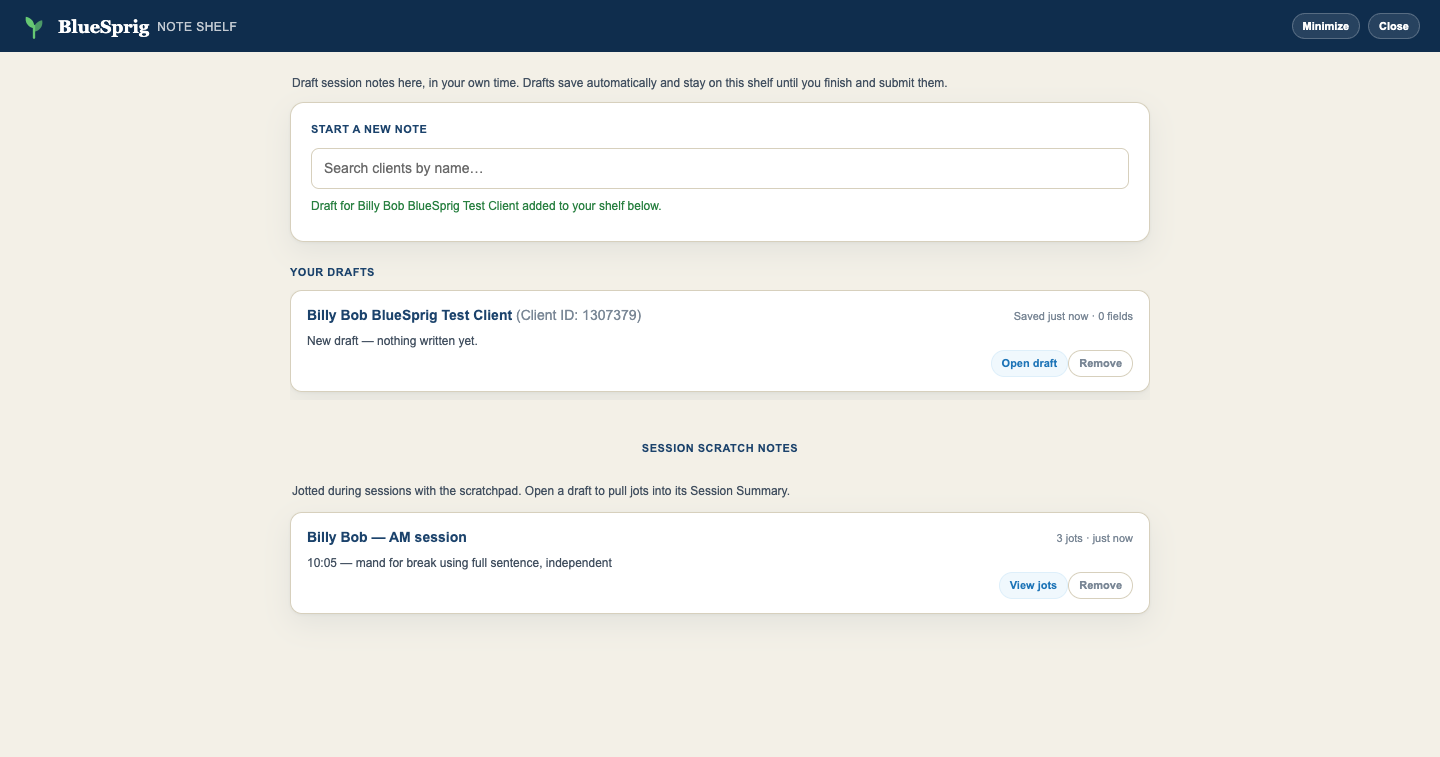
Opening Billing → New Timesheet greets you with your Note Shelf: drafts in progress, your scratch notes, and a client search to start a new draft. Drafts autosave on every keystroke and stay on the shelf until you finish and submit them.
Recognized Payors
The extension recognizes the following insurance plans and color-codes them in the resources grid for quick identification. The list is loaded directly from the extension's plan data, so it always reflects the version you have installed.
| Category | Plan Name | Family |
|---|
FAQ & Troubleshooting
How do I get SprigTools? How do I update it?
You don't do either — it installs and updates itself on BlueSprig-managed Chrome. If it's missing from your browser, report it through the feedback & bug report form. See Getting SprigTools.
I see both "CentralReach Power Tools" and "SprigTools" in my extensions.
The Power Tools copy is an old manual install from the download days. Remove it: chrome://extensions → find CentralReach Power Tools → Remove. Keep SprigTools.
Why is the extension icon red?
The icon is red when you're not on a CentralReach page with unsigned notes. Navigate to your unsigned notes and the icon will turn green.
What's the difference between Quick Review and Batch Sign All?
Quick Review signs only the notes you've selected with checkboxes. Batch Sign All queues all your unsigned notes at once, regardless of selection.
The signing process stopped. What should I do?
If you switched tabs, signing pauses on purpose and resumes when you return to the CentralReach tab. Otherwise check your internet connection; if stable, refresh the page and try again.
How do I skip a problematic note?
Press the S key during signing to skip the current note and continue.
Is my data secure?
Yes. The extension runs in your browser using your existing CentralReach session. Signing progress and note-quality scores are sent to an internal BlueSprig API to track completion, but no session note content is transmitted. Autocorrect and audit checks run entirely on your computer.
The beta overlay / scratchpad didn't appear.
Check the Beta features toggle in the extension popup, then refresh the CentralReach tab. Minimized it by accident? The overlay parks as a pill in the bottom-right corner — click to bring it back.
The date field is locked on a converted note.
That's intentional — changing the date would detach the authorization. Fix the date on the appointment in CR, then convert.
The fill paused at "Select session summaries."
It's waiting for you — session summary data is required. Tick a session (or confirm there's none) and press Continue.
Something looks wrong mid-fill.
Nothing is signed or submitted until the very end of the run; close the note in CR and start the convert again.
Autocorrect changed a word you meant?
Click Undo on the chip — it won't touch that word again until you reload the page. You can also switch autocorrect off entirely in the extension popup.
Feedback, a stuck note, or a missing extension?
Submit it through the feedback & bug report form — screenshots welcome. Beta users will also find the form linked in the extension popup.
Changelog
What's changed, newest first. The extension updates itself — you're always on the latest version listed here.
- New Sign notes from the home page (beta). A full-screen signing view launched from the Files Pending My Signature Added Recently widget: every pending note in one list (not just the grid's 50), checkboxes to cherry-pick, one-click hide/unhide for notes you're not ready to sign, unsignable templates (like treatment plans) automatically set aside, and a live progress rail with pause / skip / cancel. Made for smaller screens — see the guide.
- New Collapsible Quick Review bar (beta). The signing toolbar on the Files page can tuck itself away behind a small caret next to ALL / AUTHORIZED — more room for the grid on small screens, and it remembers your choice. See the guide.
- Improved Bulk-signing failures now distinguish "this template has no signature field" from ordinary hiccups, and report the former so the unsignable-template list can be updated centrally — no extension update needed.
- New CentralReach Power Tools is now SprigTools. Same extension, new name — it renames itself automatically; settings, streaks, and drafts carry over. The signing tool and the note-writing beta (everything in the v2.3.9.x series below) now ship together under one roof, with the beta still gated behind the popup toggle.
- Improved Distribution is now fully automatic: SprigTools installs and updates itself on BlueSprig-managed Chrome. Downloads are retired — see Getting SprigTools.
- New The refreshed signing toolbar is now the standard look for everyone — the white toolbar card with the signed-percentage chip, navy QUICK REVIEW pill, light-blue BATCH SIGN ALL NOTES, and the restyled progress banner and dialogs. Previously beta-only; no behavior changed, just the look.
- Fixed The unsigned-notes "total" count could show far more notes than were actually waiting on your signature; it now reflects only your current filter and ticks down as you sign.
- Fixed The most common bulk-signing failure ("Could not find attestation checkbox") — the signing window now opens far more reliably, with automatic retries.
- New Signing pauses automatically when the CentralReach tab isn't in front, and resumes when you return — no more background-tab failures.
- Fixed "Re-select Failed/Skipped" on the completion screen now finds every note, even in long lists that scrolled out of view.
- New TRICARE 97153 sessions now get their own guided note. When the service line reads 97153: (TRICARE) RBT Adaptive Behavior Treatment Protocol, the editor switches to that note's real form — the supervising clinician and their participation, the clinical-status grid with its required explanation, signs & symptoms, the same 19 interventions you already know, the session narrative, and the progress dropdown. Same collapsible sections and green checks as the 616 note; diagnosis, attestation, and the session-summary pull are handled for you. Plain (non-TRICARE) 97153 sessions are unchanged.
- Improved The Authorized ABA Supervisor box now shows the 30-character limit CentralReach enforces, counting as you type — so a long name gets shortened by you, not silently clipped when the note is filled.
- New See your session data while you write. The schedule flow is now two steps: Confirm session details creates the note and asks for your session summaries up front, and the committed data (every branch with its current data point) then sits right above the Session Summary box while you write — each session under its own heading. See the updated walkthrough.
- New Picked the wrong sessions? A Select Session Summary button on the Session data card reopens the picker — add, remove, or change sessions without leaving the editor.
- Improved Fill & create in CR is now completely hands-off: fill, sign, save, submit — you land back on the billing page with your Note Health toast.
- New Autocorrect in every note text box and scratchpad jots — obvious typos (teh, recieved, tokn…) fix themselves as you type, each with an Undo chip. Cautious by design: capitalized words (client names, initials) and ambiguous typos are never touched — right-click the red underline for those. ABA vocabulary (manding, stimming, …) is recognized, and everything runs on your device. Toggle it in the popup. See Autocorrect while you type.
- Improved The intervention checks now accept natural wording — "RBT reinforced GF's appropriate behaviors" counts, initials and all, no more rewording to satisfy the checkbox match. (Thanks to the RBTs who sent examples — keep them coming!)
- Improved Mentioning a token board now also offers the one-click nudge to check Visual supports, since a token board is one — alongside Token Economy as before.
- New Full support for 616 (TBC Session Note) — a completely different form from the direct-therapy notes, now with its own guided editor: the note is broken into collapsible sections (In attendance, Severe behaviors, Severity scale, Session data, and more) with a green check on each section you've completed, and Fill & create stays off until every section has what it needs. Severity "Level 0" sensibly excuses an empty Severe behaviors section — and if you pick Level 0 while a behavior is checked, a gentle warning asks you to double-check.
- New "Which report" in Event reporting unlocks only when an event report was necessary; Treatment protocols get the same "not evidenced in the summary" audit help as the direct-therapy interventions.
- Fixed Submitted notes now remove their draft from the Note Shelf automatically — no more stale drafts piling up.
- Fixed The "Other" intervention's text now truly lands on the note — verified end-to-end on a live note before this release. (The interventions grid rebuilds itself the moment Other is checked, which kept hiding the text box from the fill; it now finds it in both states.)
- Fixed The "Other" intervention's text box could still fail with "popup did not open" — the click that opens it needed the same heavier treatment as the signing window. It now opens reliably and the text lands on the note.
- Fixed The "Other" intervention's text now actually lands on the note — CentralReach pops its own text-box window the moment Other is checked, and the fill now types into that window and clicks Continue for you.
- New Required-field checks before filling: the Session Summary and Details for the LBA/BCBA can't be empty, and a checked "Other" needs its text — you'll get a clear message instead of a broken note.
- Improved The fee-schedule picker got the same rounded, polished look as the other screens.
- Fixed The "Other" intervention's text box showed all the time — it now appears only while Other is ticked, as intended.
- New The interventions list now includes "Other" — tick it and a text box appears for the intervention's name (30 characters, matching CentralReach). The fill checks the Other box on the note and types your text into its text box for you. Works on 97153 and H2019/616 notes.
- Fixed After picking a fee schedule on an H2019/616 note, the Draft Editor opened with time worked, place of service, and service address blank — it was reading the page before CentralReach finished filling it. It now waits for the filled form, so those arrive pre-populated like 97153 notes.
- New The Draft Editor's header now shows which note you're writing (e.g. "✓ H2019: BT DIRECT THERAPY"), mirroring the CentralReach notes page.
- New H2019 and 616 conversions now handle the fee schedule step: the choices from the CentralReach page (including modifier options like HM) appear in a picker, you tap the right one for the client's plan, and the guided note continues as usual. Cancel keeps you on the standard CentralReach page.
- New Converting appointments scheduled under H2019 (RBT/BT Direct Therapy) or 616 (RBT/BT Adaptive Behavior Treatment Protocol) now opens the guided session note, same as 97153 — these are the same direct-therapy sessions under payor-specific codes. Non-session codes (Admin Time, etc.) still go straight to CentralReach's standard timesheet.
- New The open scratchpad can now be moved — drag it by its header bar instead of collapsing it first. The collapsed pill follows to wherever you drop the pad, and the spot is remembered.
- Fixed Your Note Health score was easy to miss — it appeared as a small corner toast a few seconds after submitting, and vanished on its own. The score now also appears on the completion screen itself ("Scoring your note…" fills in with your result) and stays until you close it. Every note was always being scored — including BCBA/BCaBA notes — it just wasn't being shown reliably. Your running stats are in the extension popup under Your note quality.
- Fixed Scratchpad jots could be lost without warning if the extension updated itself while you had CentralReach open — the pad kept looking normal but stopped saving. Jots are now also saved to a local backup that survives extension updates, and if it happens the pad shows a banner asking you to refresh the page (your jots sync back automatically after the refresh).
- Fixed Converting a non-session appointment (Admin Time, Staff Unavailable, and other non-97153 codes) no longer opens the session-note template — those codes don't use it, and it broke their timesheets. Convert now checks the service code first: 97153 sessions get the guided note as usual, everything else goes straight to CentralReach's standard timesheet.
- New Initial pilot release of the note-writing beta: the convert-from-schedule note flow, audit suggestions & Note Health, the session scratchpad (including Clear all), and the Note Shelf.